 Room Story
How to use Room Story
Step by step, from your first room to a whole-home plan. Still stuck? Get support.
Getting started
Room Story keeps your home in projects, and each project holds rooms.
- Open the My spaces tab and tap New project. Give it a name and a style.
- In the project, tap Add room and choose what kind of room it is.
- Give the room its shape: scan it, draw it, or type its size.
- Tap Start designing to furnish it.
Good to know: During the free trial you can make one project. Room Story Pro gives you as many as you like.
Scan a room
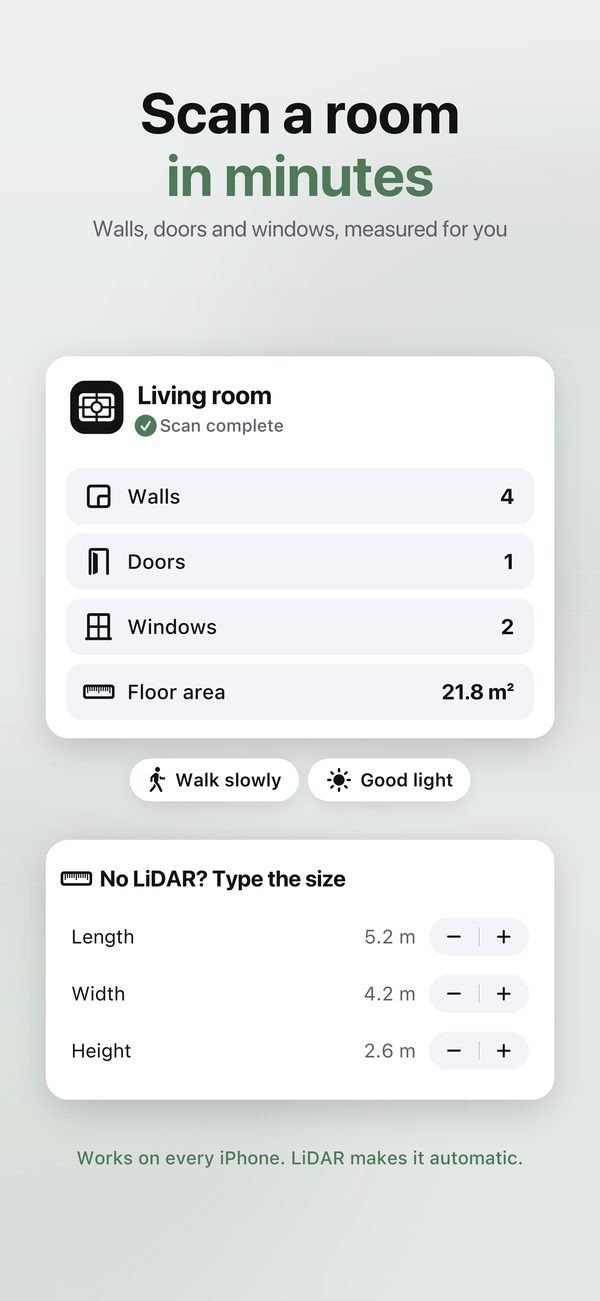
Point your iPhone at the walls and walk slowly round the room. Room Story uses Apple's RoomPlan to capture its shape and real measurements in minutes.
- Open a project, tap Add room and choose the type of room.
- Tap Scan room.
- Move slowly round the edges of the room in good light, pointing at each wall, door and window.
- Tap Done. Check the measurements, and tap Adjust measurements if one looks wrong.
Good to know: Scanning needs an iPhone with LiDAR (Pro models from the iPhone 12 Pro). On other iPhones, draw the room or type its size.
Draw your room
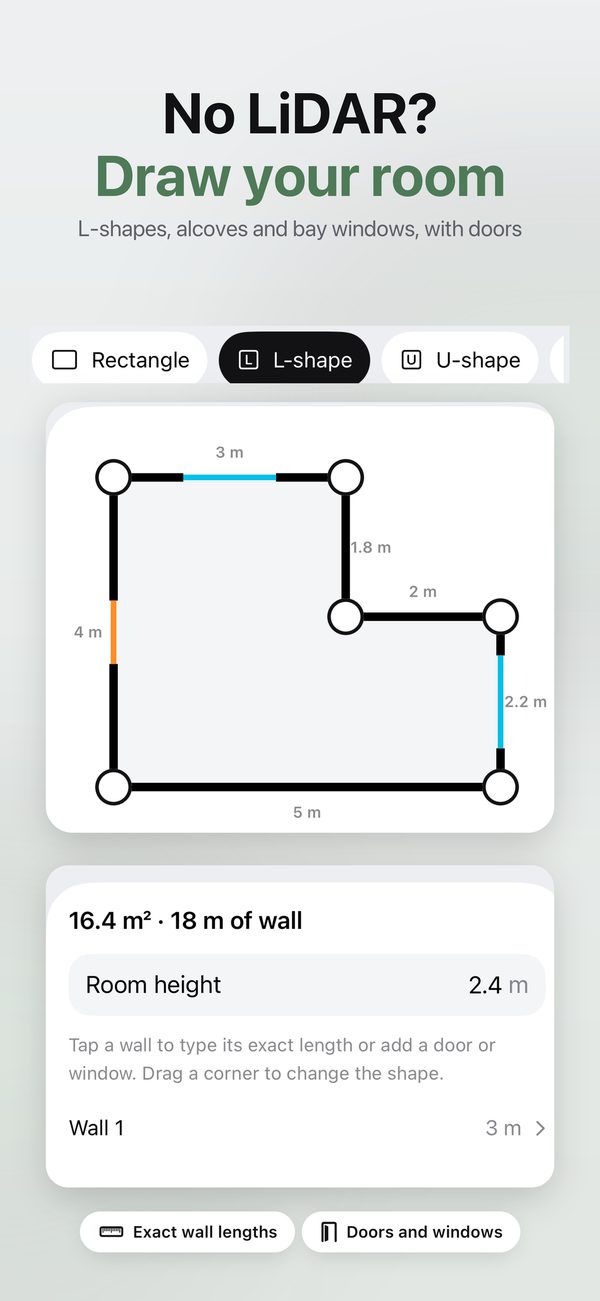
Every iPhone can map a room's real shape. Start from a template, type exact wall lengths, drag corners and add doors and windows where they really are.
- In a room, tap Draw the room's shape.
- Pick the template closest to your room.
- Tap a wall and type its exact length. The walls after it move to keep the corners square.
- Drag a corner to change the shape. Tap a wall and Add corner to make an alcove or a bay.
- Tap a wall, then Add door or Add window, and set its width, distance from the corner and height.
- Set the room height and tap Save shape.
Good to know: Only know the length and width? Tap Enter size by hand instead. You can draw the shape later.
Design in 3D
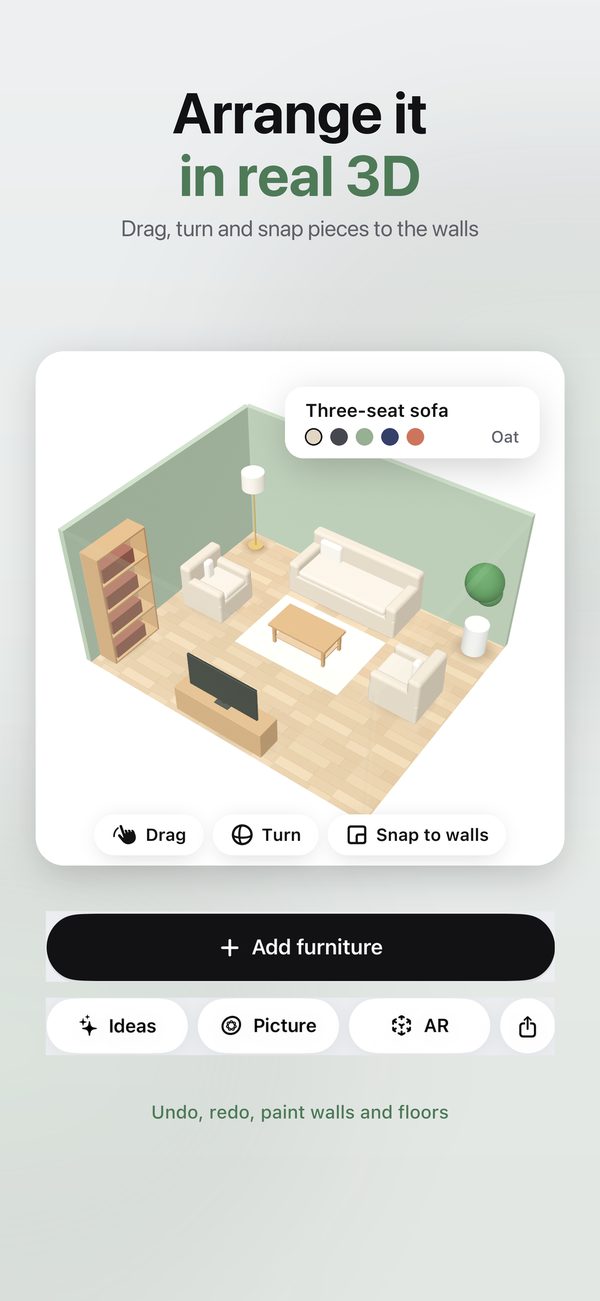
Furnish the room in real 3D. Every piece is its true size, snaps flush against the walls and turns red if it doesn't fit.
- Open the room and tap Start designing (or Edit design).
- Tap Add furniture, choose a category and tap a piece.
- Drag a piece to move it. It snaps flush against a wall when it gets close.
- Tap a piece to change its colour, turn it, duplicate it or remove it.
- Tap the paint brush to change the wall colour and the floor.
- Drag empty space to turn the room, pinch to zoom, and use undo and redo at the top.
Good to know: A piece that turns red doesn't fit there. Let go and it moves back to the last spot where it fitted.
On the walls
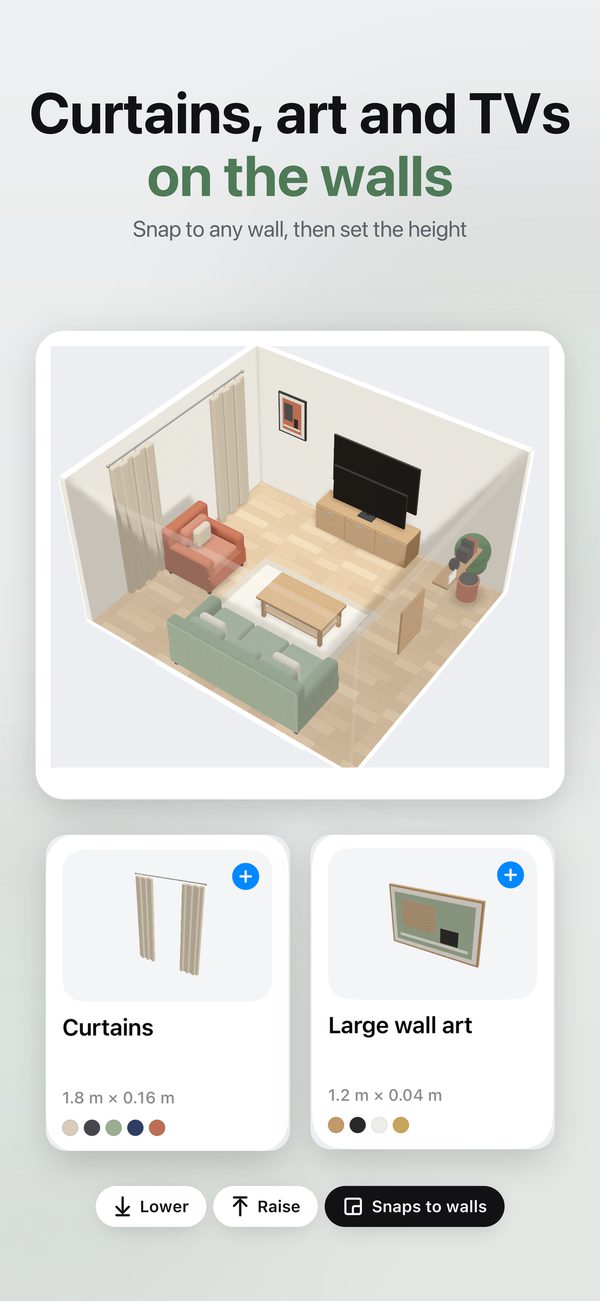
Hang curtains, art, mirrors, shelves, kitchen wall cabinets and TVs up to 85 inches. They snap flat to any wall and sit at a realistic height.
- In Add furniture, open On the walls. Wall cabinets are in Kitchen, and mirrors and towel rails in Bathroom.
- Tap a piece. It hangs on a free wall at its usual height.
- Drag it along the walls. It turns to face into the room as it goes round a corner.
- Tap it and use Lower and Raise. The panel shows how high its bottom edge is above the floor.
100+ pieces
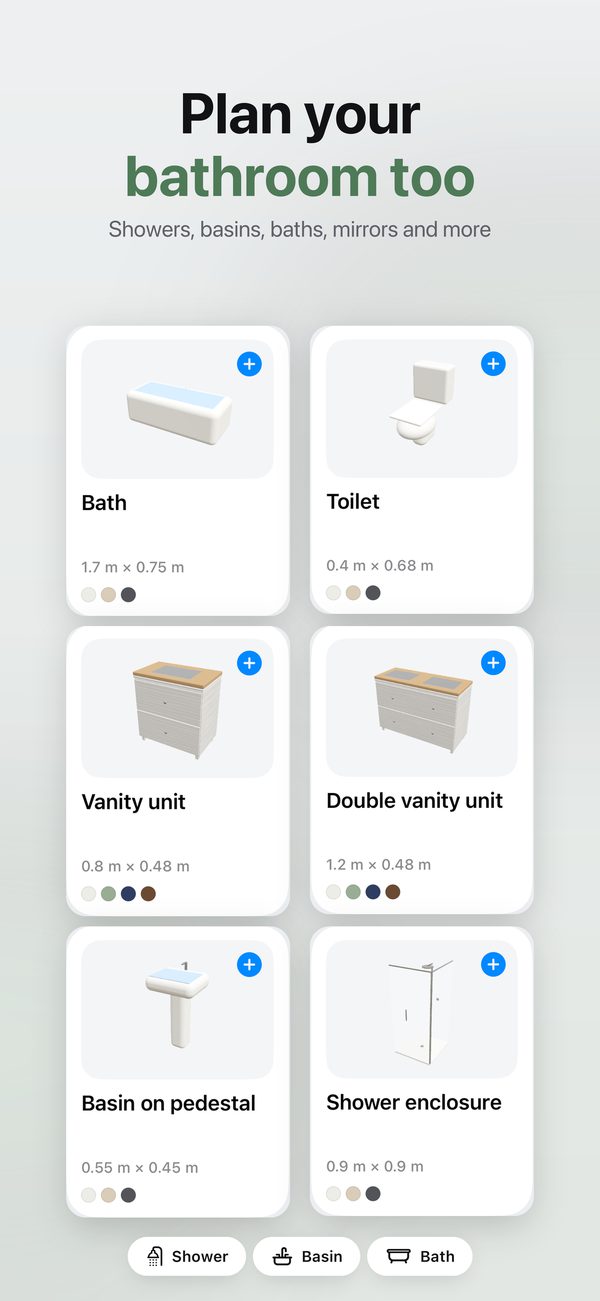
Over 100 pieces with fabric and wood textures and soft shadows: living room, bedroom, dining, kitchen, bathroom, play and fitness, garage, and even cars.
- In Add furniture, swipe the categories at the top.
- Tap a piece to add it, then tap a colour in its panel to change it.
- To add your own furniture, open My items: Scan an item (needs LiDAR), Add by size, or Import a 3D file (USDZ, for example from a shop's AR view).
AI design ideas
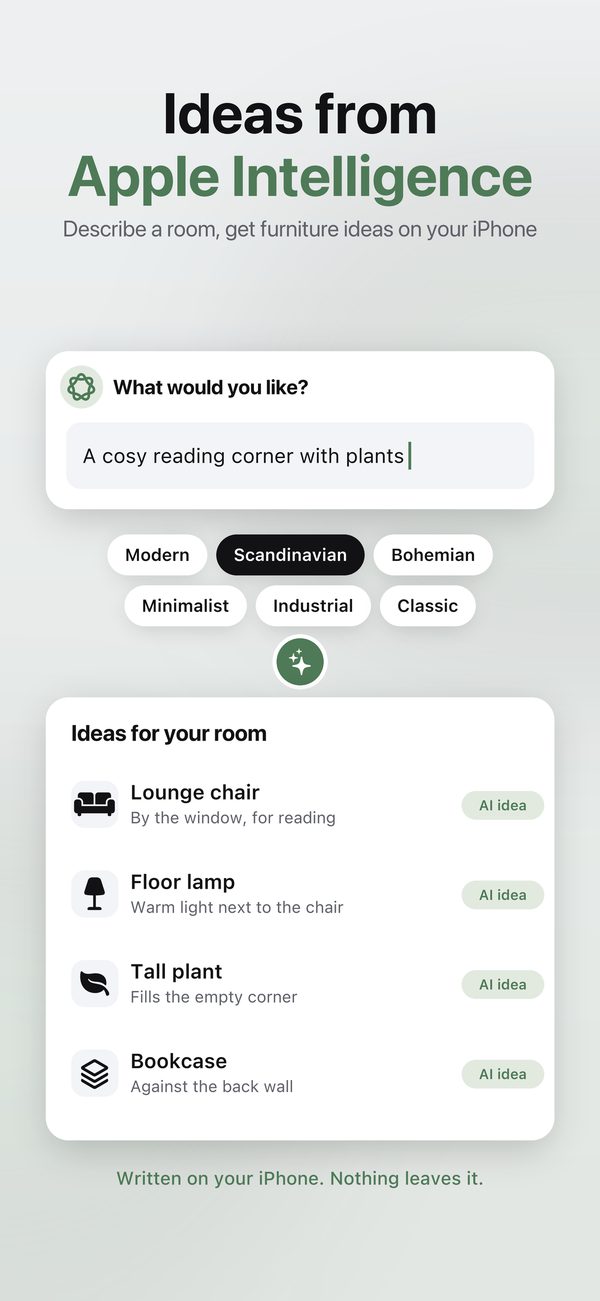
Tell Room Story what you'd like, such as "a cosy reading corner with plants", pick a style, and Apple Intelligence suggests pieces that fit your room.
- In the designer, tap Ideas.
- Describe the room you'd like and choose a style.
- Tap Get ideas. Suggested pieces appear in the room marked AI idea.
- Tap Keep on the ones you like, or keep or remove them all at once.
Good to know: AI ideas need an iPhone with Apple Intelligence turned on, in a language and region where Apple offers it.
Restyle a photo
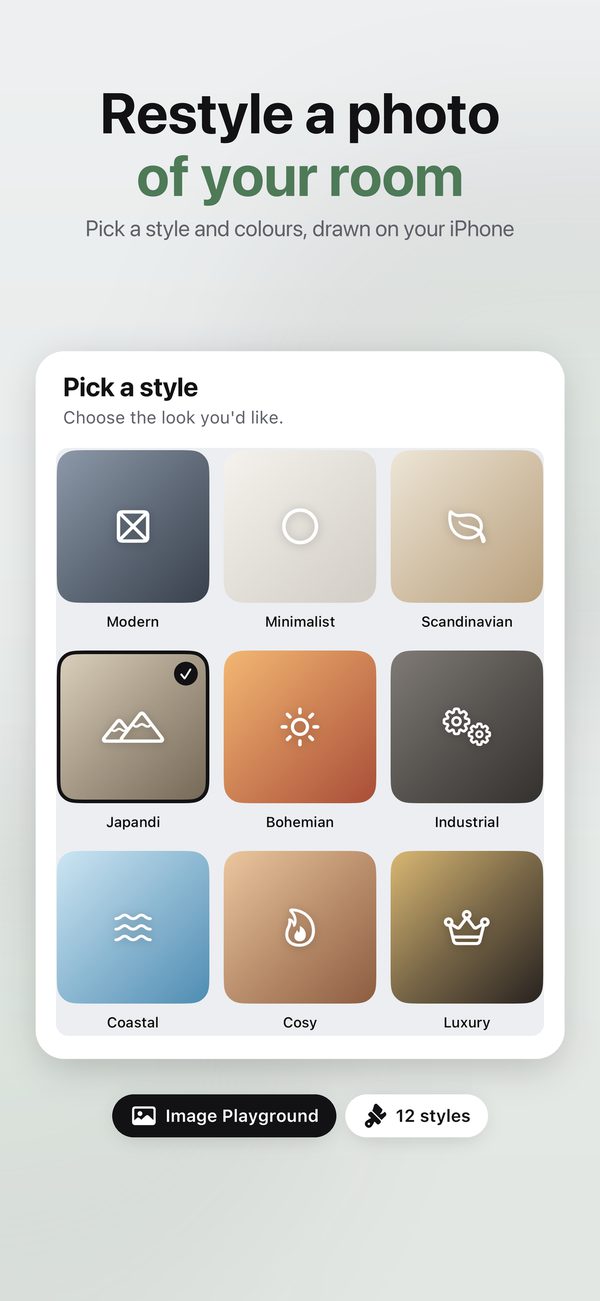
Take a photo of your room, choose a style such as Japandi or Coastal and a colour palette, and Apple's Image Playground draws a new look on your iPhone.
- On Home, tap Redesign a photo.
- Choose a photo of your room.
- Pick a style and colours.
- Image Playground draws the new look. Save it or share it.
- In the designer, Picture makes a picture of your 3D design the same way.
Good to know: Needs an iPhone that supports Image Playground with Apple Intelligence turned on.
See it in AR
Place your design in your real room with the camera.
- In the designer, tap AR.
- Point your iPhone at the floor until it's found.
- Tap to place furniture, drag to move it and twist with two fingers to turn it.
Good to know: AR needs an iPhone that supports ARKit and camera access for Room Story.
Floor plans to scale
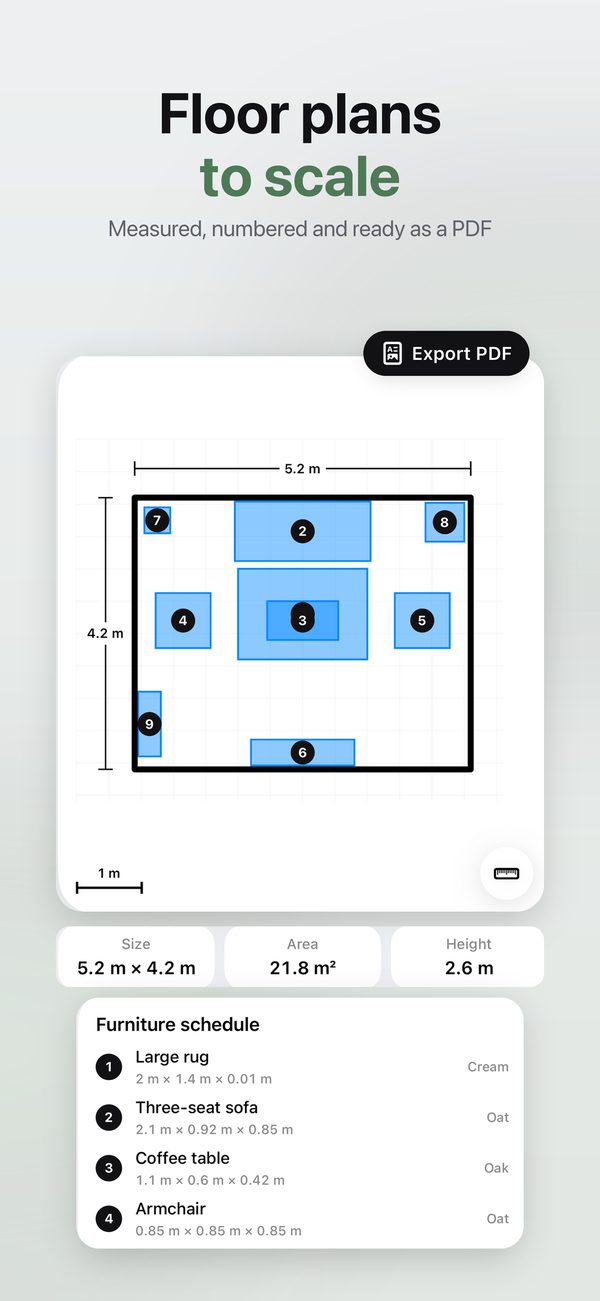
See any room as a floor plan with its sizes, numbered furniture and walkway checks, and share it as an A4 PDF drawn to a standard scale.
- In a room, tap Open floor plan, or the floor plan button in the designer.
- Pinch to zoom and drag to look around.
- Use the layers button to show dimensions, labels and door swings.
- Tap the ruler, then two points, to measure between them.
- Tap PDF to share or print the plan.
Whole-home plan
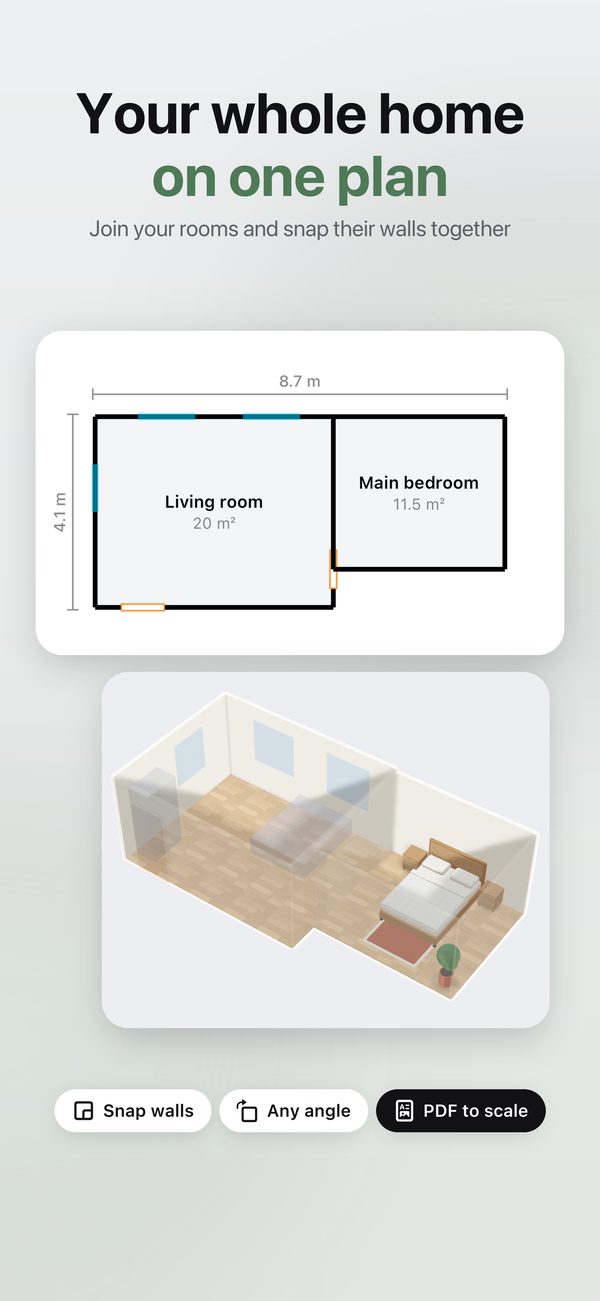
Put all the rooms of a project together into one home. Walls snap together where rooms meet, and you can see the whole home in 3D with its furniture.
- Open a project and tap Home plan.
- Your rooms appear side by side. Drag a room next to another; their walls snap together.
- Tap a room to turn it: twist with two fingers, use the Angle slider, or Turn left and Turn right.
- Switch to 3D to see the whole home with all its furniture.
- Tap PDF for an A4 plan with every room, its area and the total floor area.
Good to know: Rooms need a scan, a drawn shape or a typed size to appear on the plan.
Carports and verandas
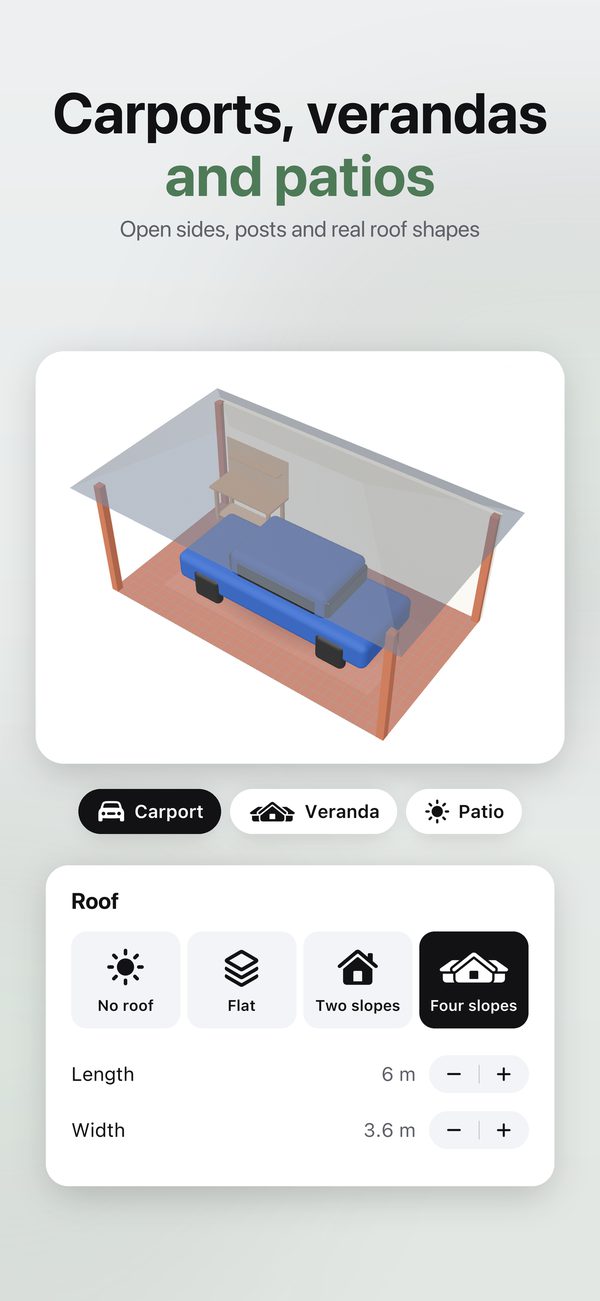
Plan carports, verandas, patios and balconies with open sides, posts and five roof styles, then park a car or set out the garden furniture.
- In a room, tap Set up an open space.
- Start from a carport, veranda, patio or balcony.
- Set the length, width and height.
- Tap each side to make it a wall or open, and choose posts and a roof.
- Tap Save, then design it like any room.
Units and subscription
Choose your measurements and manage Room Story Pro.
- Open Profile from the tab bar.
- Under Measurements, choose Automatic, Metric or Imperial. Rooms keep their real size when you switch.
- Manage subscription opens your Apple Account subscriptions, where you can change plan or cancel.
- Restore purchases unlocks Pro again after reinstalling or on a new iPhone.
Good to know: The free trial lasts 3 days and includes one project. Cancel at least 24 hours before it ends to avoid being charged.